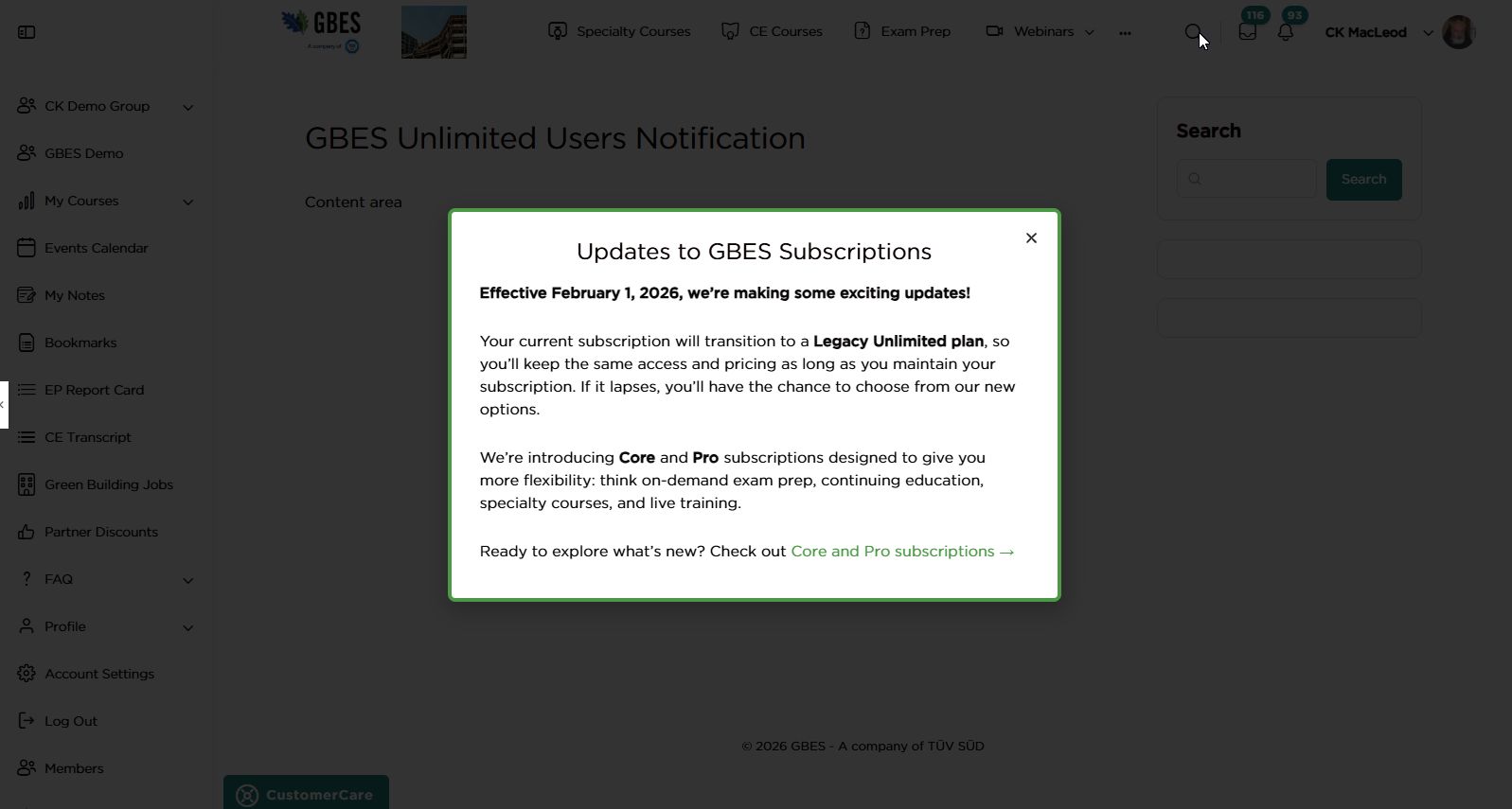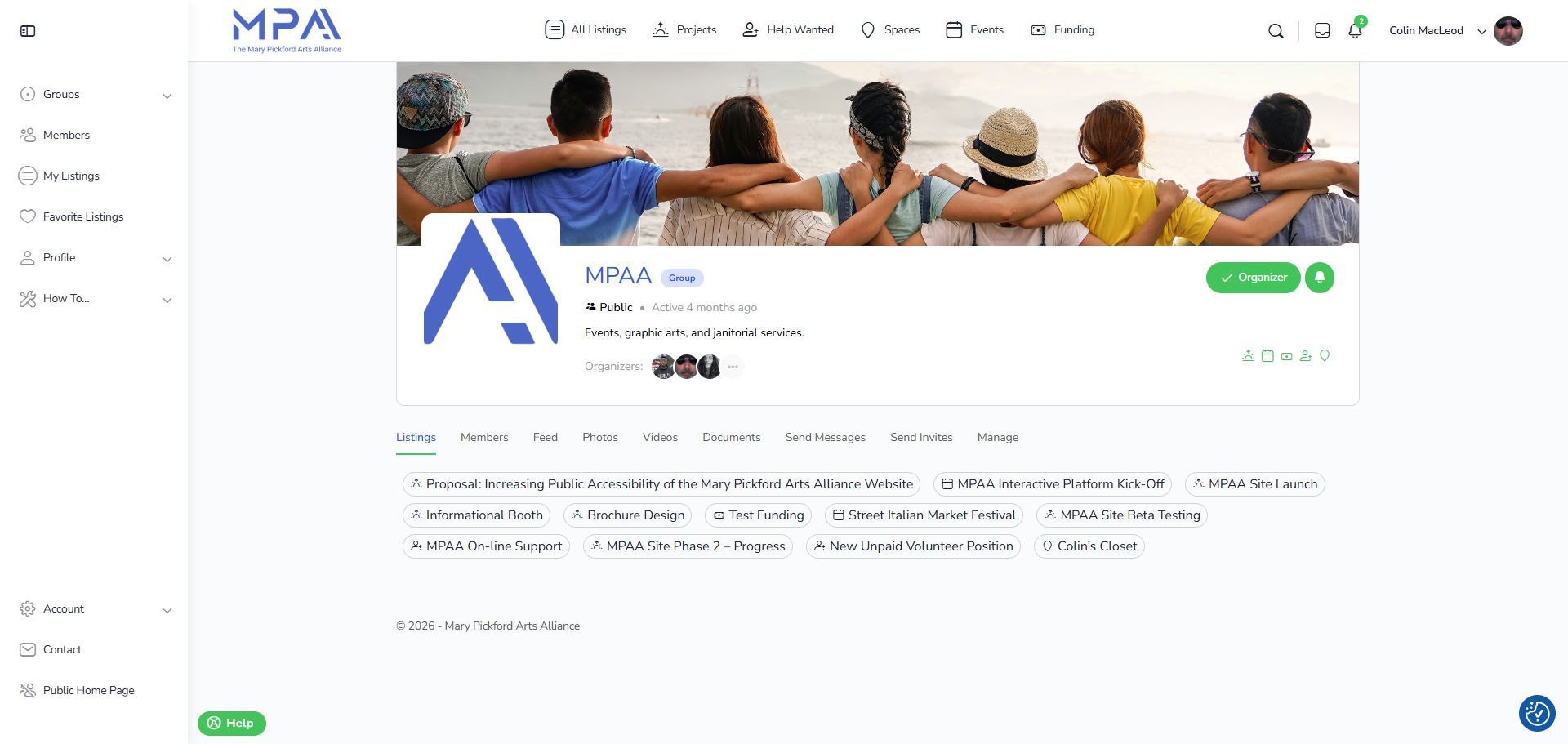
As of this writing, BuddyBoss Icons are not fully integrated with Elementor, GeoDirectory, or Gutenberg. Though Elementor does allow for importing custom fonts, there does not appear to be any available translation of the BuddyBoss icon pack into a format acceptable to Elementor. Similarly, Gutenberg Blocks (these days, simply WordPress) also do not provide a simple way to add BuddyBoss icons directly to page elements. Finally, GeoDirectory relies on FontAwesome exclusively for icons.
In all cases, some more elegant modifications of Elementor, GeoDirectory, or Gutenberg might more fully integrate the BuddyBoss icon pack, but at this point it’s easier and more direct simply to add BuddyBoss icon code directly in places it’s not really, or any not obviously, intended to go.

The BuddyBoss Icon Code
If you look for BuddyBoss icons in BuddyBoss theme output, specifically menu items, you’ll find something like the following:
<i class="_mi _before bb-icon-l buddyboss bb-icon-user-plus" aria-hidden="true"></i>
A slightly more compact version suffices (see also line 29 in the code for A Sitewide Customer Care Messaging Button for BuddyBoss.) The initial class declarations _mi and _before are not essential to ensure good output. They are used to help set width, height, margins, font-size, and so on in menu items, and are specified to menu-specific classes in BuddyBoss theme CSS. You’ll need to set those using CSS as needed. aria-hidden="true" is an accessbility-related statement.
Adding BuddyBoss Icons to Elementor Elements
In short, all that you have to do is add the above snippet to the text content in which you’re interested. When you first add it, the output will look like garbage (the example shows addition of the complete BuddyBoss snippet, with_mi and _before classes included:

After publication and refresh, the desired output will have been processed:

This method will also work if you go to Elementor page settings, and place the icon code before the title. However, you may also encounter intermediate unwanted output, for instance in a given BuddyBoss menu item where the native icon has already been added.

Fortunately, re-saving the menu will remove the redundant icons, but unwanted garbagey html will still pollute admin titles generally.


Fortunately, removing these unwanted additions turns out to be easy, with a little PHP added to you theme functions.php or some other appropriate plugin or theme file:
/**
 * REMOVE BUDDYBOSS HTML FROM TITLES IN ADMIN
 */
add_filter( 'the_title', 'remove_buddy_boss_icons_in_admin' ) ;
function remove_buddy_boss_icons_in_admin( $title ) {

	if ( is_admin() && strpos( $title, 'buddyboss' ) ) {

		$title = strip_tags( $title ) ;

	}

	return $title ;

}
If you’re doing something else funny with titles, requiring extraneous HTML, then you might have to target the filter more closely.
GeoDirectory Single Tabs
Even if you are a fan of FontAwesome icons, which can be somewhat smoothly substituted for BuddyBoss icons from within BuddyBoss menu editing, for example, you may not want to add FontAwesome Pro and its extended family and features, nor rely on the BuddyBoss implementation of FontAwesome.
Though GeoDirectory does not directly integrate with BuddyBoss, and though its BuddyPress Integration add-on is (as of this writing) faulty and limited, it does offer filters that eventually make effective use of BuddyBoss icons possible, and without a resort to hackery.
/**
 * GD > SINGLE TABS WIDGET ICON CUSTOMIZATION
 * Replace FontAwesome icons with BuddyBoss Icons
 */
add_filter( 'geodir_single_post_tabs_array', 'mpaa_replace_geodir_tab_icons' ) ;
function mpaa_replace_geodir_tab_icons( $tabs ) {

	$modified_tabs = array() ;

	foreach( $tabs as $tab ) {

		$name = $tab['tab_name'] ;
		$icon = '' ;

		switch( $name ) {

			case 'Description' :
			$icon = 'sun' ;
			break ;
			case 'Photos' :
			$replaced = true ;
			$icon = 'images' ;
			break ;
			case 'Questions and Comments' :
			$icon = 'comments' ;
			break ;
			case 'Deadline Date' :
			$icon = 'lock' ;
			break ;
			case 'Files' :
			$icon = 'file-download' ;
			break ;
			case 'Map' :
			$icon = 'map' ;
			break ;
			case 'Event Dates' :
			$icon = 'calendar' ;
			break ;

		}

		if ( $icon ) {
			$tab['tab_icon'] = 'bb-icon-l buddyboss bb-icon-' . $icon ;
		}

		$modified_tabs[] = $tab ;

	}

	return $modified_tabs ;

}
/**
 * Cause Geodir widget to return icon code even if BuddyBoss, not Fontawesome, is in use
 */
add_filter( 'geodir_is_fa_icon', 'mpaa_fa_buddyboss_icon_true', 10, 2 ) ;
function mpaa_fa_buddyboss_icon_true( $return, $icon ) {

	if ( strpos( $icon, 'buddyboss' ) ) {

		return true ;

	}

	return $return ;

}
GeoDirectory Map Bubble
There is (at least) one other area where you might want to replace GeoDirectory icons with BuddyBoss icons: The Map Bubble, which is output via the GD > Map widget and deployable in post type archives.

GeoDirectory comes with a wealth of filters, though they’re handled in a somewhat unusual style. Without going into great detail, I’ll just provide a snippet that may prove useful in other contexts, here used to replace the Fontawesome icon with a BuddyBoss icon. Note that custom icons, as image files, can also be uploaded and used for particular custom fields. That’s not an approach in which I was interested.
/**
 * REPLACING CUSTOM FIELD HTML, modifying icon
 * Using "geodir_custom_field_output_phone_key_{$cf['field_type_key']}" from geodirectory/includes/custom-fields/output-functions.php
 */
add_filter( 'geodir_custom_field_output_phone_key_phone', 'mpaa_customize_phone_field_output', 10 ) ;
function mpaa_customize_phone_field_output( $html ) {

	$phone = geodir_get_post_meta( get_the_ID(), 'phone', true ) ;

	$html = '<div class="geodir_post_meta list-group-item list-group-item-action  geodir-field-phone">
			<span class="geodir_post_meta_icon geodir-i-phone" style="">
				<i class="bb-icon-l buddyboss bb-icon-phone" aria-hidden="true"></i>
				<span class="geodir_post_meta_title ">Phone: </span>
			</span>
			<a href="tel:' . $phone .'">'. $phone . '</a>
		</div>' ;

	return $html ;

}
I’ve detailed a different approach to customizing the map bubble in a separate post.